Managing computers in WAN
With rapid increase in globalisation, most companies have their branch offices spread across different places of the world. Managing the computers in these branch offices effectively is always a tedious job for the system administrators. With Device Control Plus in hand, managing computers in WAN across remote office will turn out to be a much easier process. To manage computers in a remote location you have to add remote offices. You can add and modify the remote offices according to your requirement. Communication across these remote offices is possible by two ways
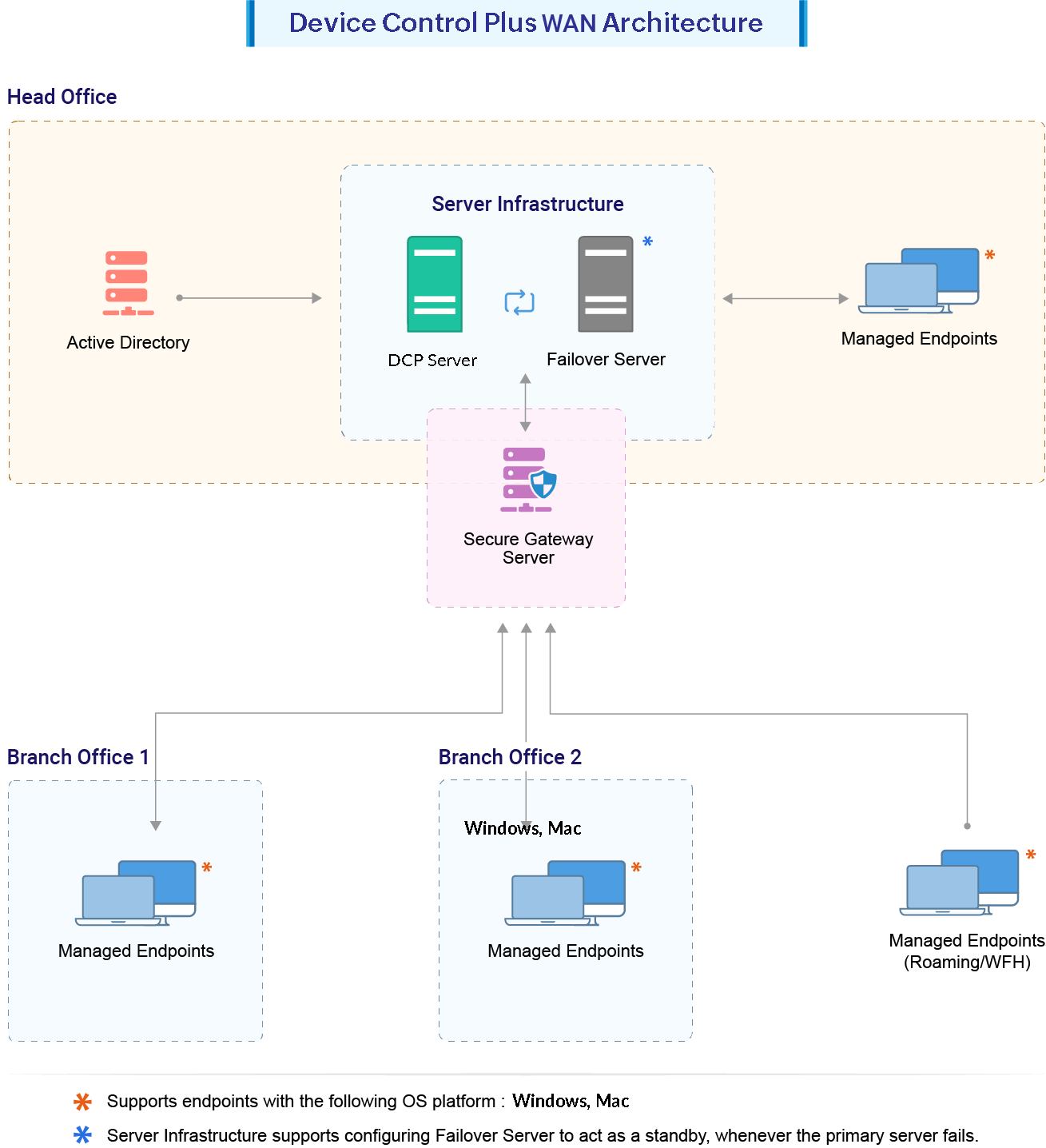
Adding a remote office
For managing computers in WAN you have to add a remote office. You can add the remote office directly by selecting the Remote offices tab and clicking Add Remote office. The following points are needed to be taken care while adding a remote office.
- Enter Remote Office Name
- Under Communication Details, choose the replication policy. If not created already, create a new replication policy
- Select Proxy configuration, if needed
- Modify the remote control settings according to your bandwidth consumption
- Under Remote Agent Installation, select Install WAN Agent Automatically if you want to install agents automatically in computers under remote office. The systems can be mentioned under Manager Computers below. You can also import the computers via CSV. For adding multiple computers, the CSV file should contain computer name given in separate lines.
- Provide domain credentials to be used for agent installation.
Adding Multiple Remote offices
You can also add the remote office by importing a CSV file. For adding multiple remote offices, the CSV file should contain remote office names given in separate lines.
Modifying a remote office
You can also modify the remote office, by clicking the Modify icon, under the Actions column against the remote office you want to modify.
To know about installing WAN agents click here.